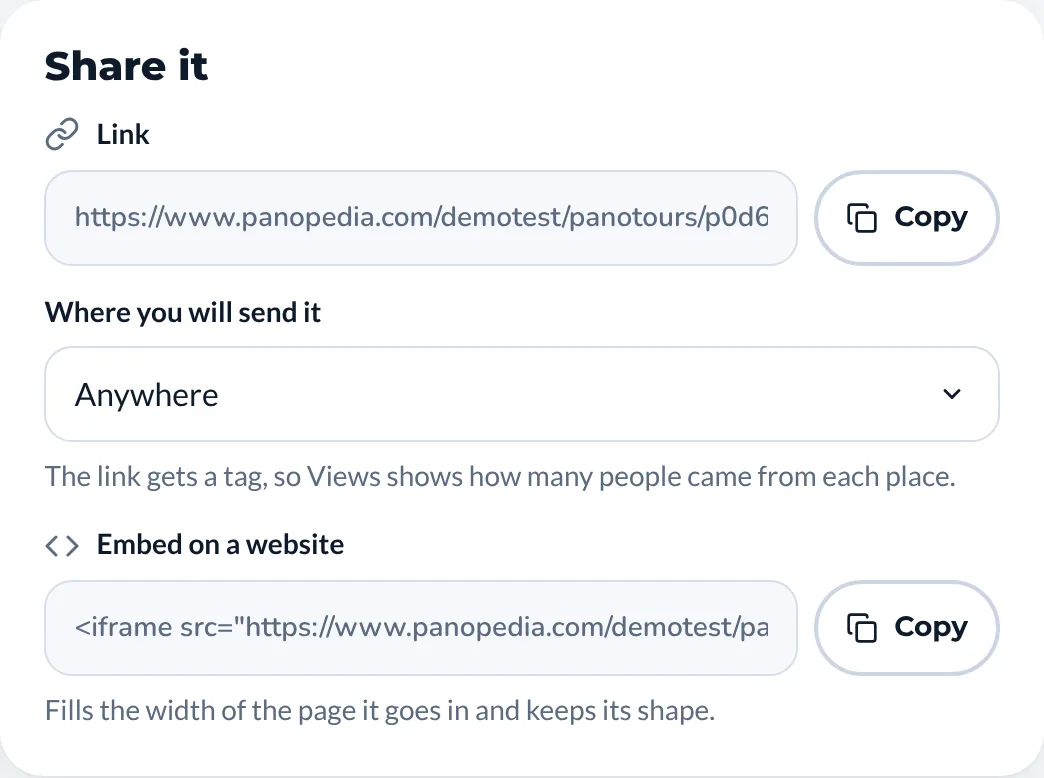
Open your Panotour's page and press Copy link, at the top or beside Link under Share it. Paste it into a message, an email, a listing portal or a post.
The link shows your Panotour's title and picture when it is shared, so set both before you send it. The picture is Picture for shared links in the Panotour's details; without one, the first scene is used.
From inside the Panotour
Anyone viewing a Panotour can share it from its share button: copy the link, or send it by WhatsApp, Facebook, LinkedIn, X or email, and on a phone through WeChat or any other app. WeChat does not accept links from other apps, so its button copies the link for you to paste in.
A link to one scene, looking one way
To send someone straight to the view from the balcony, or the kitchen you meant, open the Panotour, go to that scene and turn to that view. Press the share button, then Copy a link to this scene and this view. The link opens the Panotour there, looking that way. Where it is shared, it shows that scene's own picture and name, so "Master bedroom, 3 bedroom condo" with the bedroom in the preview, not the Panotour's cover.
Knowing which link they used
Under Share it, Where you will send it gives a link for WhatsApp, email, a text message, a QR code and others. Views then shows how many people came from each.
What viewers can do
People can drag to look around, use the scene menu to jump to any scene, follow your arrows, and go full screen. On a phone they can also look around by moving the phone.
Tip. If you set a username, your links carry it, which reads better than a code. Change it later and old links stop working, so choose it before you share widely. See Signing in and passwords.