From your Panotour, choose Connect. The first scene opens, with every scene listed beside it.
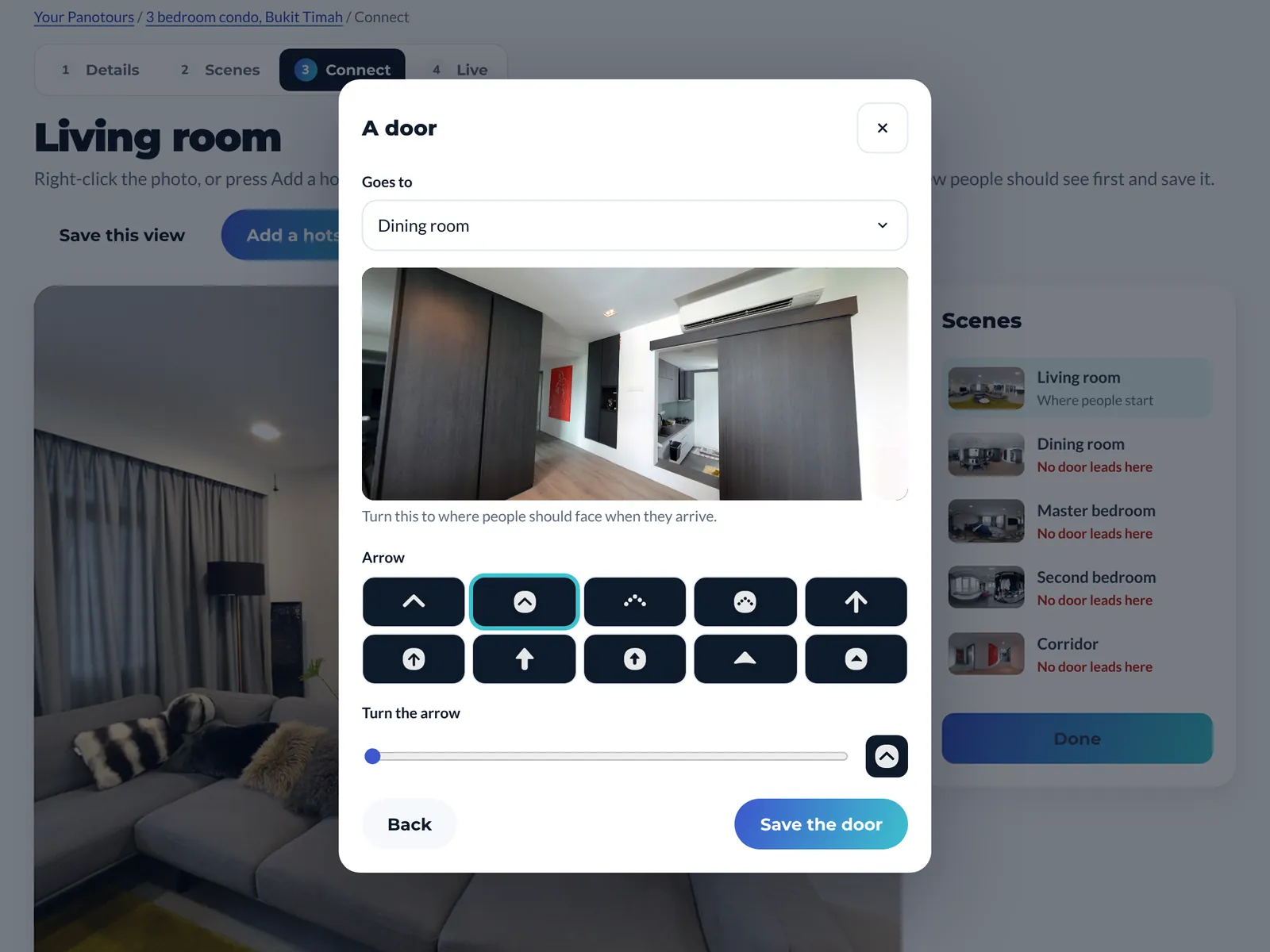
- Find the doorway. Drag the scene round until the crosshair in the middle is on the door into the next scene.
- Add a hotspot. Press Add a hotspot, or right-click the photo, to put one where the crosshair is. Choose A door.
- Choose where it leads. Pick the scene under Goes to. A preview of that scene appears.
- Set which way they face on arrival. Turn the preview to where someone walking through that door would be looking.
- Pick an arrow and turn it. Choose an arrow style, then turn it with Turn the arrow until it points the way a person would walk. Press Save the door.
- Do every scene. Pick the next scene from the list beside the photo and repeat. Remember the way back: an arrow from the kitchen to the hallway, and one from the hallway to the kitchen. The list marks a scene with no way in, and Done takes you back to the Panotour.
Changes save as you go. There is no publish button to press.
Removing a hotspot
Click the hotspot so its title shows, hover over the title, and press the delete icon. You are asked to confirm.
Changing a door
Click the door's title. Its settings open: where it leads, the arrow, its turn, and the preview of the next scene, facing the way people arrive now. Change what you need and press Save the door. If you choose another scene, turn its preview again before saving.
Tip. Put the arrow where a person would actually walk: the doorway, not the middle of the floor. It is what makes a tour feel like walking rather than jumping.
The two starting views
Where someone faces on arriving through an arrow is set on the arrow, as above. Where a scene faces when it is opened from the scene menu, or as the first scene, is its own starting view. They can differ, and usually should.
Undo
Made a mistake? Press Undo at the top of the page, or Ctrl+Z (Cmd+Z on a Mac). It takes back the last thing you did on any scene of this Panotour: adding, changing or deleting a hotspot, or saving a starting view. Press it again to go further back. A deleted hotspot comes back with its picture. Changes can be undone for a day.