Open Profile from your account menu. Your details there are used on receipts and, if you choose, on your Panotours.
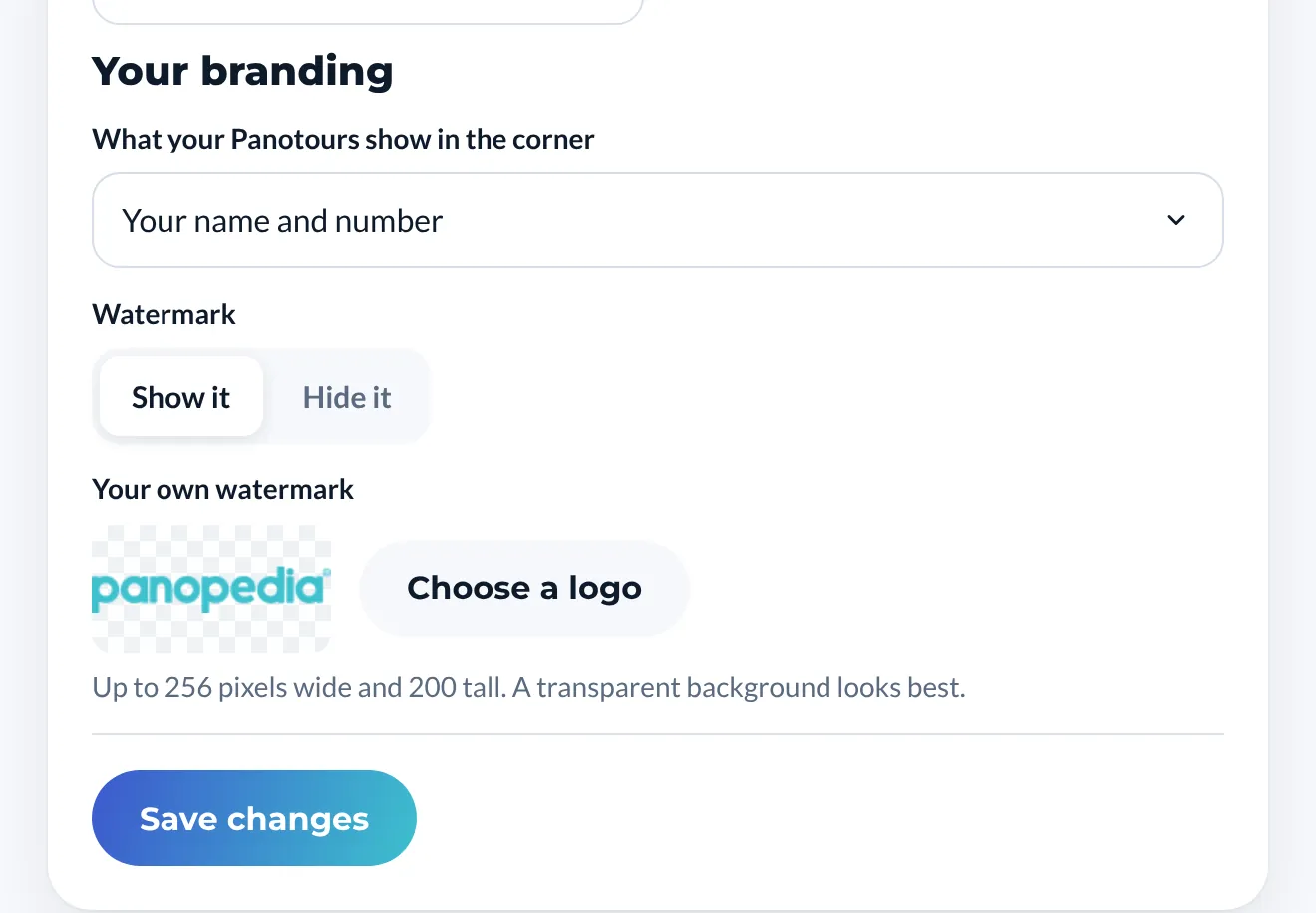
What your Panotours show
Every Panotour shows its author in the corner, with your contact number under your name. On a paid plan, What your Panotours show in the corner, under Your branding on your profile, lets you choose:
- Your name and number, the default.
- Your name and email, instead of the number.
- Nothing, to show no name or contact at all.
Corporate accounts have a fourth choice, Set for each Panotour, which lets each Panotour show its own agent and contact.
Your own watermark
The Panopedia mark sits in the corner of every Panotour. On plans that include a custom watermark (the Plans page shows which), Your branding lets you replace it with your own logo (Choose a logo), or hide it altogether (Hide it). The logo can be up to 256 pixels wide and 200 tall, as a JPG, JPEG, PNG, GIF, BMP or TIFF file. A logo on a transparent background looks best.
Linking Google or Apple
You can link a Google or Apple account on your profile, even one with a different email address. After that, its button signs you in.